

Communications
Section titled “Communications”Communications brings staff messaging, email, SMS, and audience tools into one area so your team can manage conversations and outbound communication without maintaining separate contact systems.
Start with a goal
What do you want to do?
Choose the outcome that matches the work in front of you. You can come back to the deeper reference sections when you need details.
Send an email
Use Mass Email for one-time or campaign-style communication to an appropriate audience.
Build a reusable audience
Create Mailing Lists for ministries, volunteers, newsletters, and other recurring communication groups.
Manage SMS subscribers
Work with subscribers, keywords, opt-ins, and the SMS audience tools available to your organization.
Work an ongoing conversation
Use Inbox and Messaging & Calls for incoming, ongoing, and staff-managed conversations.
Recommended flow
A good first workflow
- Choose the channel that matches the message and audience.
- Build or confirm the audience before composing the message.
- Check opt-out and preference state before sending.
- Send, then use the appropriate inbox or delivery view for follow-up.
Messaging
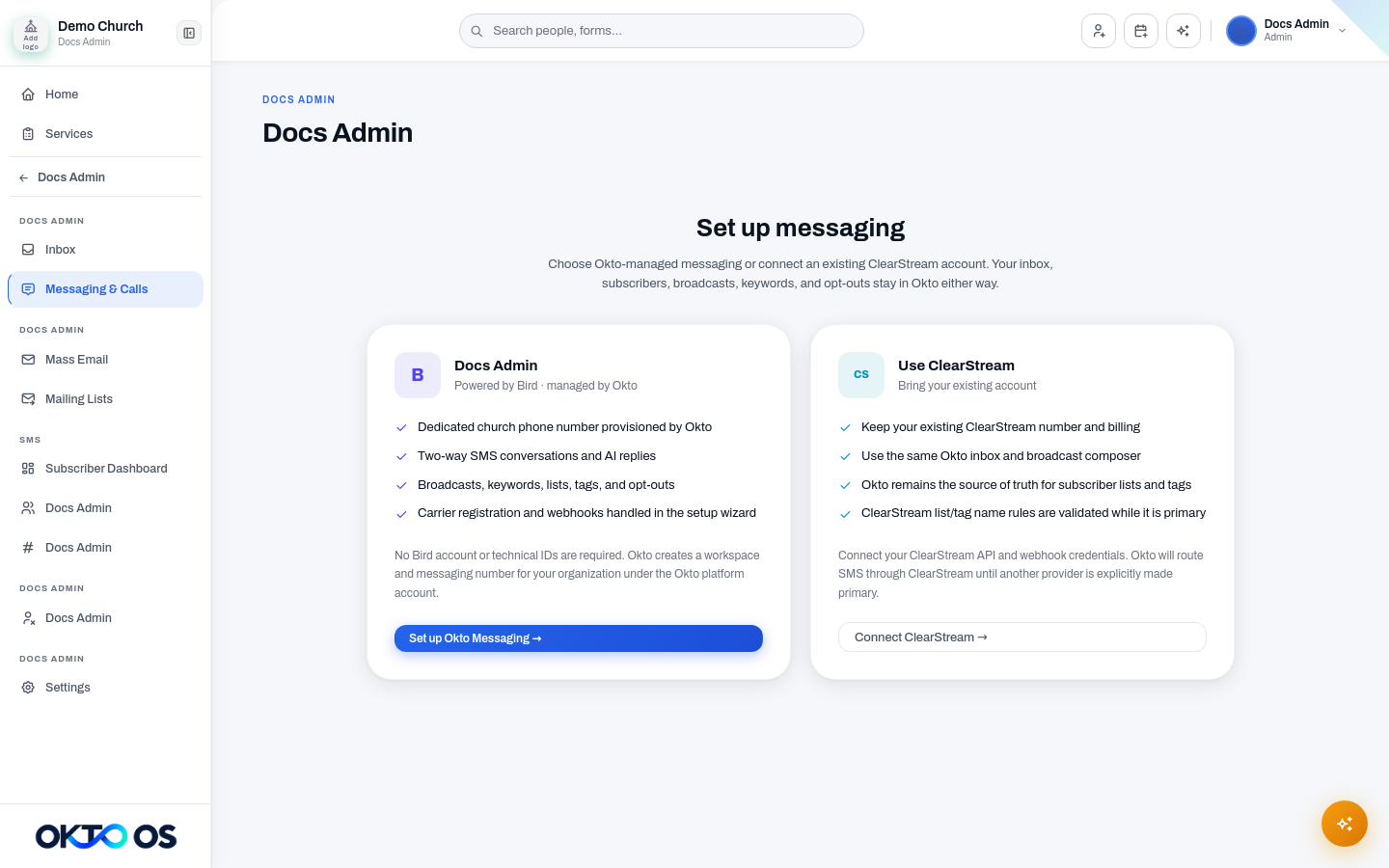
Section titled “Messaging”Use Inbox to work with incoming and ongoing communication. Use Messaging & Calls for the broader messaging and calling workspace available to your organization.
Use Mass Email to create and send email communication to the appropriate audience. Mailing Lists provides reusable subscriber groups for newsletters, ministries, volunteers, and other targeted communication.
- Create and manage Mailing Lists
- Add subscribers individually or in bulk
- Add people automatically from forms
The SMS area includes the Subscriber Dashboard, Subscribers, and Keywords. Use these tools to manage SMS audiences and keyword-based subscription workflows when SMS is enabled for your organization.
Shared preference management
Section titled “Shared preference management”Use Unsubscribed to review opt-out state across communication workflows. Before sending, OKTO should respect communication preferences, opt-outs, delivery status, and the permissions that apply to your team.
Settings
Section titled “Settings”Use Communications → Settings for the configuration shared by communication workflows. Delivery providers and channel-specific capabilities can change over time, so the documentation focuses on the OKTO workflow rather than hard-coding a provider as the product model.